Authorization
LibreNMS uses a role-based access control (RBAC) system. Permissions are grouped into roles, and roles are assigned to users to define what they can see and do within the application.
1. Introduction to Authorization
Authorization determines what an authenticated user is allowed to do. In LibreNMS, this is handled through a combination of functional permissions (via Roles) and resource-specific permissions (direct user assignments).
Warning
Functional permissions are assigned to Roles and Roles are assigned to Users. Individual functional permissions cannot be assigned directly to users.
2. Roles
Roles are collections of permissions that define a user's level of access.
Built-in Roles:
admin: Full access to all features and resources (Global Read/Write).global-read: Read-only access to all devices and data (Global Read). This role is assigned allviewAnypermissions.user: Limited access; requires specific resource permissions (devices, ports, bills) to see data.
Custom Roles:
Users can create custom roles to define specific sets of functional permissions. These can be managed via the Web UI under Settings (cog icon) -> Manage Users -> Roles.
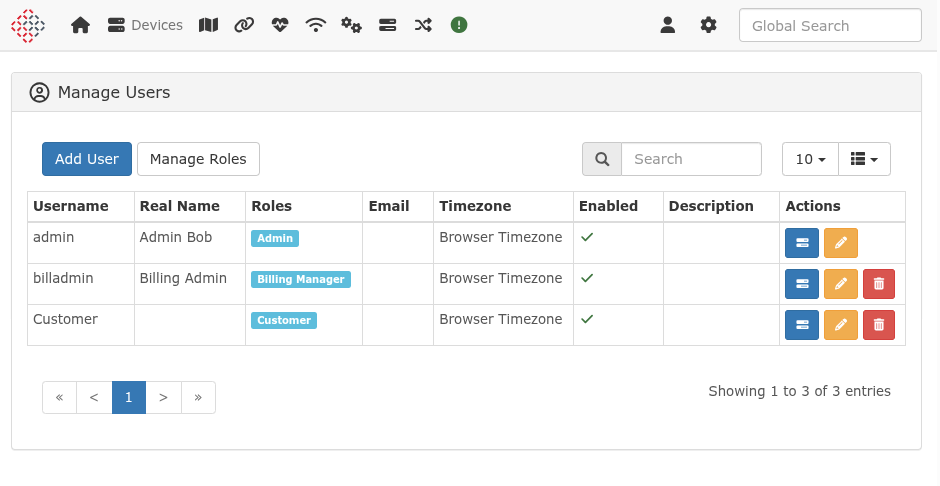
Custom roles allow for fine-tuned access. Unlike built-in roles, they can be configured with any combination of functional permissions available in the system. For example, you can create a role that only allows viewing event logs and nothing else.
3. Permissions
Functional permissions control access to specific parts of the application or actions.
Global Permissions:
These permissions define what a user can do at a high level. Examples include: * device.create: Permission to add new devices. * alert.viewAny: Permission to view the list of alerts. * settings.update: Permission to modify global settings.
Permission Groups:
Permissions are organized into groups such as device, port, bill, alert, user, and settings.
4. Resource-Specific Permissions (Granular Access)
LibreNMS provides granular, resource-specific access control for users who lack viewAny functional permissions.
The viewAny Permission and Fallback
Functional permissions like device.viewAny, port.viewAny, and bill.viewAny determine if a user can see ALL resources of that type.
- If a user has
device.viewAny, they see all devices. - If a user lacks
device.viewAny, the system falls back to granular permissions. They will only see devices specifically assigned to them (via direct assignment or a static device group).
Most other items in the system (sensors, services, health data, alerts for a specific device) do not have their own separate granular permissions. Instead, access to these items falls back to the device or port permissions. If you have access to a device, you generally have access to its sub-resources.
Interaction Between Functional and Resource Permissions
A common point of confusion is the interaction between functional permissions (e.g., routing.viewAny) and resource-specific permissions (e.g., device access).
Even if a user is granted access to a specific device, they still require the corresponding functional permission to access certain modules or menu items for that device.
Example: Routing Even with access to Router-01, the Routing menu won't appear unless the user's role includes routing.viewAny or routing.view.
This pattern applies to several other modules, including: * Switching (VLANs): Requires vlan.viewAny. * Services: Requires service.view. * Health Data (Sensors): While viewing basic health data typically falls back to device access, managing sensors (e.g., editing thresholds or labels) requires specific functional permissions such as sensor.update or wireless-sensor.update.
Device Permissions:
Access to individual devices is granted to users directly. When a user is granted access to a device, they can see all data related to that device, including its ports, sensors, and services (provided they also have the required functional permissions for those modules).
Port Permissions:
Access can be granted to individual ports. Note that if a user already has access to the parent device, they will automatically have access to all its ports.
Port-only Access: If a user is granted access only to specific ports, they will not see the parent device in the main Devices list or in most global views. They will only see the ports they have access to in the Ports list and in specific port-related views. This is useful for providing customers access to only their specific interfaces without exposing the entire device configuration or other customers' ports.
Bill Permissions:
Visibility of billing data is restricted to specific users through bill-level permissions. If a user lacks bill.viewAny, they will only see bills they have been explicitly granted access to.
Device Group Permissions:
Access can be granted to all devices within a specific Static Device Group.
Note
Only static device groups can be used for permissions. Dynamic device groups do not support permission assignment.
5. Managing Authorization
Quick Reference: UI Paths
| Task | Web UI Path |
|---|---|
| Create/Edit Roles | Settings (cog icon) -> Manage Users -> Roles (button) |
| Assign Role to User | Settings (cog icon) -> Manage Users -> Edit (pencil icon) |
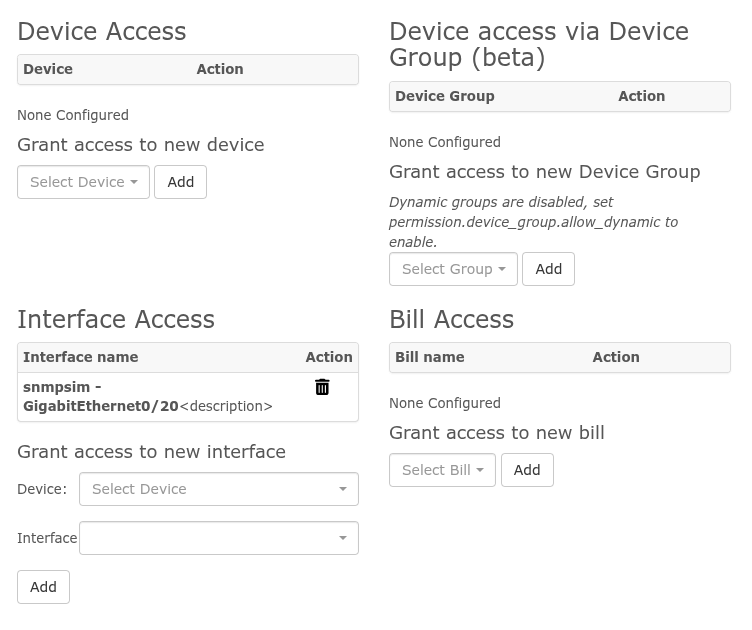
| Manage Resource Access | Settings (cog icon) -> Manage Users -> Manage Access (tasks icon) |
The Manage Access screen is the primary location for assigning specific Devices, Ports, Bills, and Static Groups to a user.
Command Line (CLI):
You can use the ./lnms command-line tool for some user management tasks: * ./lnms user:add: Create a new user and assign a role.
6. Common Scenarios & Examples
Scenario: NOC Operator
Goal: Allow monitoring of all devices and alerts, but prevent configuration changes.
- Create Role: Create a noc-operator role and assign the following permissions:
device.viewAny,port.viewAny,alert.viewAny,eventlog.viewAny, anddevice-log.viewAny. - Assign Role: Assign the
noc-operatorrole to the user. - Resource Access: Since they have
device.viewAny, they automatically see all devices. No additional resource assignments are needed.
Scenario: Customer with Specific Access
Goal: Allow a customer to see only their devices and specific ports.
- Assign Role: Assign the built-in
userrole to the customer. (This role has noviewAnypermissions). - Assign Devices: Go to Manage Access for that user and add the specific devices they own.
- Assign Ports: Go to Manage Access for that user and add specific ports on other devices (e.g., their uplink port on a shared switch).
- Result: The customer will see their own devices in full, plus only the specific ports assigned to them from other devices.
Scenario: Billing Manager
Goal: Allow access to billing data and nothing else.
- Create Role: Create a
billing-managerrole and assignbill.viewAnyandbill.update. - Assign Role: Assign the
billing-managerrole to the user. - Resource Access: Since they have
bill.viewAny, they see all bills. If you want them to see only specific bills instead, omitbill.viewAnyand assignbill.viewto the role, then assign individual bills in Manage Access.
Warning
The admin role bypasses all granular checks and has full access to the entire system. Assign this role only to trusted administrators.